
Your needs, this model
Does it fit your priorities?
Can the ConferenceCam Connect meet a 1080p60 minimum?
No 1080p60 mode is established for the exact U.S. SKU. Logitech's current comparison lists Full HD up to 1080p30, and its product material identifies supported-client 720p HD separately. Treat it as a 1080p30 room camera, not a 60 fps webcam.
Explore this need in the finder →Does its remote provide the built-in physical shutter required by the finder?
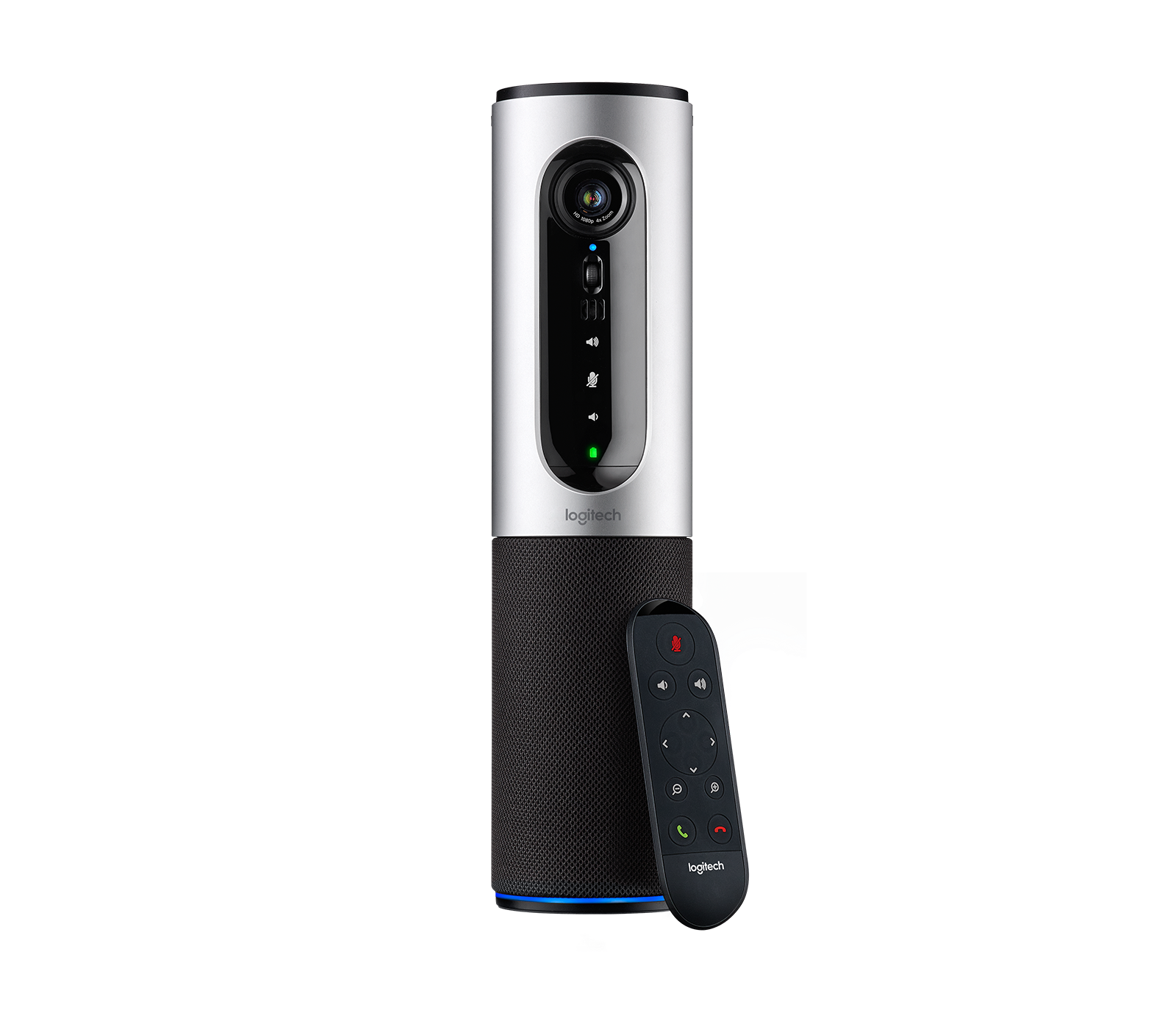
No. Logitech says the included magnetic remote docks over the lens as a cover, which is a useful physical privacy step, but it is removable rather than a built-in shutter. The strict shutter filter therefore does not count the Connect as a match.
Explore this need in the finder →Does SKU 960-001013 have built-in microphone hardware?
Yes. Logitech lists two omnidirectional microphones and an integrated full-duplex speakerphone with echo and noise cancellation. Those component specifications do not guarantee intelligibility in a particular room or at a particular seating distance.
Explore this need in the finder →What computer cable and power should I plan for?
The U.S. box list includes a 6-foot (1.8 m) USB cable and AC adapter. Logitech's support FAQ describes the supplied USB 2.0 path as Micro-USB at the camera and Type-A at the host; a USB 3.0 host port is supported. Plan a direct computer connection and check reach, battery condition or AC access.
Is Connect a normal personal webcam or an all-in-one meeting camera?
It can serve as a USB webcam and audio device on a computer, but Logitech positions it for huddle rooms, home offices and travel. Its integrated speakerphone, tabletop placement and rechargeable battery make it a small-room meeting device rather than a typical monitor-mounted personal webcam.
Assessment basis: this is a research-led reading of Logitech’s current U.S. product page, USB support notes and model materials, not a hands-on test. The U.S. offer identifies the Logitech ConferenceCam Connect as SKU 960-001013. It is best understood as a portable huddle-room camera and speakerphone that can also work as a computer webcam, not as a small monitor-clip webcam with an incidental microphone.
Where the Connect earns its footprint
Logitech positions Connect for huddle rooms, home offices and travel, with a tabletop footprint about 3 inches across and a tall cylindrical body. Its 90-degree diagonal view, autofocus, digital pan/tilt and 4× digital zoom are aimed at showing a few people around a table rather than producing a tight, fixed head-and-shoulders view. The mechanical tilt wheel is useful for aiming the unit, but the digital framing range is not the same as a motorized room-camera system. A small desk can make the camera feel tall and visually prominent; measure the available table space and consider where the lens will sit relative to seated participants.
Count frames, not just the Full HD label
The current Logitech page’s product comparison names a maximum Full HD mode of 1080p30, and its detailed specifications also list supported-client 720p video. The exact sources do not establish a 1080p60 or 4K mode. H.264 UVC 1.5 with Scalable Video Coding is documented, but codec support is not evidence that every call app exposes identical modes. If 60 frames per second or a higher-resolution capture path is essential, compare the mode requirement against a product with an explicit matching mode rather than treating “Full HD” as a frame-rate promise. A source specification also cannot predict the picture quality in a particular room or video app.
One camera and one room-audio device
Connect’s most material difference from a conventional webcam is its integrated, full-duplex speakerphone: Logitech lists two omnidirectional microphones, echo and noise cancellation, Bluetooth/NFC pairing, speaker output and call controls. That can simplify a small-group meeting because the camera and room audio are a single device. It does not establish how well voices will be heard in a noisy room or at any particular distance; treat the published microphone and speaker figures as component specifications, not a room-performance test. Logitech’s historical datasheet gives battery-runtime claims of up to three hours for video calls and up to 15 hours for speakerphone use on a full charge. Those are maker claims, and a battery’s actual capacity can change with age, so verify the battery condition on a used or old-stock offer and keep the supplied AC power adapter available for a fixed installation.
Check the USB and power arrangement before planning the table
The included computer cable is listed as a 6-foot (1.8 m) USB cable. Logitech’s Connect support note identifies the supplied route as USB 2.0, Micro-USB at the camera and Type-A at the computer; it says a USB 3.0 host port can also be used. That is not a reason to assume the camera’s own link becomes USB 3.0. Logitech cautions against an ordinary USB hub or extender because of signal-integrity concerns, so plan a direct, reachable host connection. The camera is rechargeable and also ships with a regional-plug AC adapter; do not assume its USB data connection alone powers it. The manufacturer support page notes that HDMI/screen-mirroring hardware is not present on every unit. Since the model’s computer-webcam job needs no screen-mirroring claim, this assessment does not count that feature as guaranteed for SKU 960-001013.
A useful privacy cover, but not a built-in shutter
The included magnetic remote docks over the lens and can act as a physical lens cover. That is more than an app mute, but it remains a separate removable control rather than a built-in sliding shutter; the finder therefore does not count it as an integrated physical shutter. The device also has speakerphone mute controls. When privacy matters, check that the remote is present, docks securely and is not confused with an electronic mute or a seller-added accessory.
How it differs from the PTZ Pro 2
The companion Logitech PTZ Pro 2 assessment covers a different room-camera task. Connect brings camera, microphones and speakerphone together in a portable tabletop device. PTZ Pro 2 is a camera-first unit with a separate power requirement, a room-oriented mount and remote motorized pan/tilt/zoom; Logitech expects external installed audio. Connect is the more self-contained option for a huddle table. PTZ Pro 2 is more appropriate when an operator needs to reframe a room or move between presenters and a whiteboard. Neither should be mistaken for a 1080p60 desktop webcam.
What to verify on the exact offer
Confirm SKU 960-001013 and the gray U.S. model; check that the package includes the dockable remote, USB cable, AC adapter and regional plugs. Inspect cable reach and host connector needs, confirm the chosen conferencing application recognizes both camera and audio endpoints, and decide whether the table-mounted framing suits the group. For a single-person desktop setup, a smaller monitor-mounted webcam may be easier to place. For an all-day unattended room, verify battery condition or plan continuous AC power. A refurbished or incomplete offer can differ from Logitech’s in-box list, and this research does not establish its condition, current availability or seller terms.
Bottom line: the ConferenceCam Connect’s case is its combination of an autofocus 1080p30 camera, a small-group speakerphone and portable tabletop use. Its frame-rate ceiling, non-integrated lens cover, USB 2.0 cable and battery/power planning are equally important. Choose it for the integrated huddle-room workflow, not because the “webcam” label implies a faster desk-camera mode.
Manufacturer sources
- Logitech U.S. Connect product page, SKU 960-001013
- Logitech ConferenceCam Connect datasheet
- Logitech Connect component specifications
- Logitech Connect USB and hub compatibility note
Key specifications
Key details at a glance
| Documented modes and host limits | The exact U.S. product page lists up to 1080p30; the 720p mode is described with supported clients without a separate frame-rate figure. No 60 fps or 4K mode is credited. |
|---|---|
| Focus system | Autofocus |
| Diagonal field of view | 90° |
| Built-in microphone | Yes |
| Physical privacy shutter | No |
Use the exact model’s instructions for operating limits, supplied equipment and version differences.
Sources for this review
Sources for this assessment
Compare the features that affect your setup
Set essential video, focus, privacy and microphone requirements together; leave nonessential choices open.