
Your needs, this model
Does it fit your priorities?
Can the GO 3 send its normal 2.7K recording mode to a meeting app?
No reviewed official Webcam source establishes a 2.7K computer feed. The GO-series conferencing table lists app-specific paths that reach 1080p in some clients, 720p in many and 360p in some browser paths, and does not give a Webcam frame rate. The camera's 2.7K recording modes do not transfer to this Webcam claim.
Explore this need in the finder →Can I select the GO 3's own microphones in a video meeting?
No. Insta360's GO 3/GO 3S Webcam FAQ says camera-microphone audio capture is not supported. Plan to use a separate computer microphone and verify that the meeting app selects it.
Explore this need in the finder →What extra steps does the GO 3 Webcam mode require?
The maker says GO 3 Webcam mode requires firmware 1.2.7 or later and the camera must remain seated in the Action Pod. A computer connection supplies power to the Pod/camera but does not charge the camera, so check firmware, the USB data cable, the host application and battery state before a long call.
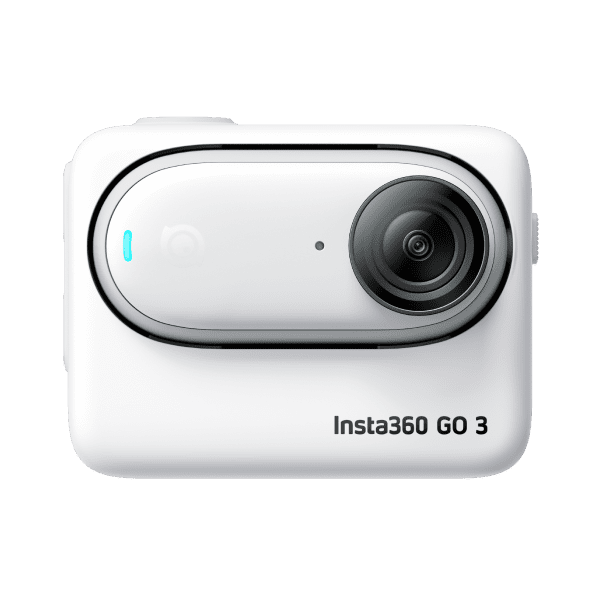
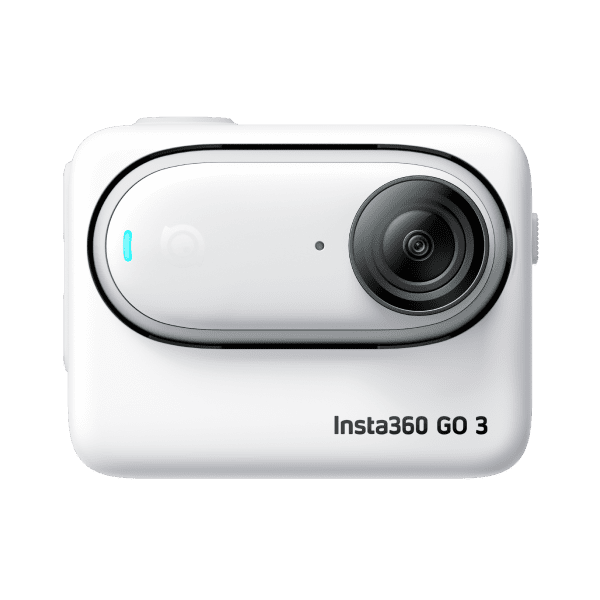
Explore this need in the finder →The Insta360 GO 3 is not a conventional USB webcam with a clip and a single cable routine. It is a small action camera with a documented computer Webcam mode, but the workflow relies on its Action Pod, a data cable, compatible software and a recent-enough firmware version. That is most useful if you already own this earlier camera or want its tiny detachable form for both recorded footage and occasional calls. It is a less straightforward choice if your only goal is a dependable meeting camera.
A camera that has to stay in its pod
Insta360's GO 3-specific Webcam tutorial says the feature arrived with firmware 1.2.7. To use it, place the camera in the Action Pod, connect it to the computer using the included USB-C cable, choose Webcam mode in the prompt and select “Insta360 GO 3” as the camera in conferencing software. The pod is not an optional desk stand for this job: the manufacturer says to keep the GO 3 in it while Webcam mode is active.
This makes the set-up more conditional than plugging in a purpose-built webcam. Before a call, check the camera's firmware, whether the Action Pod is present and working, whether the USB cable carries data, and whether the host app detects the GO 3 as an input. The maker's general support page lists a group of meeting apps and browser paths, but its table is application-, operating-system- and access-specific. A named app on one system does not guarantee that every browser, version or configuration will behave the same way.
Do not confuse recorded resolution with call resolution
The GO 3 can record action-camera footage at up to 2.7K in its own camera modes. That is a different signal path from Webcam mode. In the computer workflow, Insta360 says the external software controls video parameters and lists maximums for particular conferencing clients and browsers. Some listed client paths reach 1080p, many are capped at 720p, and a few browser paths are listed at 360p. The documentation does not specify a Webcam frame rate or offer a universal maximum that applies to every app.
That distinction matters if the appeal is a “2.7K webcam.” The official source does not establish that. Nor does it establish 1080p at 60 frames per second; a resolution ceiling alone is not a frame-rate specification. If a meeting platform's 720p path is too soft for your use, changing the camera's normal recording mode cannot turn that into a documented high-resolution Webcam output. Check the exact app, OS and client/browser route before choosing the camera for an important call.
Plan a separate microphone
The GO 3 has microphone hardware for camera use, but that is not the same as appearing as a meeting microphone. Insta360's GO-series Webcam FAQ explicitly says that computer audio capture from the camera's microphone is not supported for the GO 3 and GO 3S. Use a separate USB or computer microphone and select it in the meeting application. Buyers who want one cable to provide both video and a selectable camera mic should look at a different, explicitly documented webcam arrangement.
The computer connection also is not a charging routine. Insta360 says the computer supplies power to the Action Pod and camera but does not charge the camera. For a long session, start with an adequate charge rather than assuming a USB-connected GO 3 is replenishing its battery. The support page does not quantify webcam runtime, and this review does not convert camera-recording battery figures into a meeting-call promise.
Framing, focus and shutter questions stay open
The GO 3 tutorial calls out one Webcam-specific limitation: Face Priority is unavailable in Webcam mode. It separately describes a Webcam Zoom setting that can detect a face and keep it centered. That is a useful distinction, but it should not be expanded into a promise of full camera control, tracking or stabilization in every application. The general conferencing FAQ says some camera settings—including resolution, mode, stabilization, field of view and zoom—are disabled because the external software controls the video parameters. The model-specific Webcam Zoom note is the exception actually described for the GO 3.
The hardware table lists a 0.5 m minimum focusing distance. That near-focus figure says how close an object can be under the specified camera conditions; it does not tell us whether the Webcam path uses fixed focus or autofocus, or how it behaves at a normal desk distance. The reviewed material also does not establish a built-in physical privacy shutter or a particular privacy state in a call. If either capability is essential, do not infer it from the camera's small body or from its lens cover. Ask about the exact unit and verify the meeting setup.
Exact U.S. identity and package caution
The U.S. Best Buy listing inspected for this assessment identifies the GO 3 (128GB) in White as retailer model GO306, SKU 6547270; its title mentions a Lens Guard. At the time of inspection, that page said the item was no longer available in new condition. That is useful identity evidence for someone checking an existing camera or a later seller listing, not evidence that a specific offer is still available or that another seller's box contains the same parts. This assessment therefore treats the GO 3 as an earlier model, not as a current new-product recommendation.
For any used or open-box unit, verify the camera, Action Pod, data-capable cable, lens cover/guard, condition and firmware against the actual package. The GO 3's Webcam function requires the Action Pod even if a seller title describes only the small camera. The precise seller package, included accessories, battery health and any remaining support status were not established for a live offer here.
Who should still consider it?
The GO 3 makes the most sense for someone who already owns the camera and can treat USB Webcam mode as an extra use for a compact camera, rather than as its central purpose. It has a clear supported path into a PC meeting, a documented minimum firmware version and a list of compatible software routes. Those are real advantages over an action camera with no documented Webcam mode.
Its compromises are concrete: it must sit in the Action Pod; the computer does not charge it; the camera's own microphone is not a meeting-audio device; software settings control the feed; and no webcam frame rate is stated. Its headline recording resolution is not the call feed's resolution. A new buyer who mainly wants reliable framing, straightforward audio and a predictable mount should compare it with dedicated webcams whose app, focus and microphone details are documented for that job. The GO 3 remains a viable specialist option only when its tiny camera form and dual recorded-video/Webcam role are worth the extra setup.
Key specifications
Key details at a glance
| Documented modes and host limits | No GO 3 Webcam frame rate is published in the reviewed English support material. The camera's 2.7K recording options are separate from the computer Webcam path and do not establish a 2.7K feed. |
|---|---|
| Built-in microphone | No |
Use the exact model’s instructions for operating limits, supplied equipment and version differences.
Sources for this review
Sources for this assessment
- GO Series: Using the Camera as a Webcam for Video Conferencing When Connected to PC
- GO 3: Webcam Mode
- GO Series: Hardware Specifications
- GO Series: Photo & Video Specifications
- Insta360 GO 3 (128GB) Action Camera with Lens Guard - White
- Insta360 U.S. Store GO 3 product route
- Insta360 GO 3 official product render on GO Series specifications
Compare the features that affect your setup
Set essential video, focus, privacy and microphone requirements together; leave nonessential choices open.